

Portable Display Setup for Small Budgets: 2026 Guide
Table of Contents
- Portable Display Setup for Small Budgets: What Actually Matters
- The Complete Low-Cost Setup Budget (Monitor, Stand, Cables, Charger)
- How to Pick the Best Budget Portable Monitor by Task
- Portable Monitor with USB-C: One-Cable Setup and Compatibility Checks
- Portable Monitor Power Requirements and Power Bank Planning
- Portable Monitor Stand and Accessories That Protect Your Investment
- Troubleshooting Common Connection and Power Problems
- Low-Cost Alternatives to Buying a Portable Monitor
- Frequently Asked Questions
Last Updated: October 5, 2026
Portable Display Setup for Small Budgets: What Actually Matters
A portable display setup for small budgets comes down to three decisions: which monitor, how you power it, and how you connect it. Get those right and you can run a genuine second screen for well under what a full desktop monitor costs.
The core argument here is simple, and it runs through every section: budget portable displays fail for power and cabling reasons far more often than for panel quality reasons. Most buyers obsess over resolution and ignore the charger. That's backwards, and it's the single most expensive mistake in this category.
The Complete Low-Cost Setup Budget (Monitor, Stand, Cables, Charger)
The real cost of a portable display setup is the monitor plus everything that makes it usable. A screen alone is not a setup.
Here's how a complete low-cost build breaks down:
| Component | What to Budget | What It Does | Where to Save |
|---|---|---|---|
| Portable monitor | Largest single cost | The display panel itself | Buy last year's model, not the newest |
| Protective cover or stand | Small | Holds the screen upright, protects it in transit | Many monitors include a fold-out cover |
| USB-C cable | Small | Carries video and often power | Use the cable in the box if it's rated for video |
| HDMI cable plus adapter | Small | Connects older laptops | Buy one adapter, not three |
| Charger or power bank | Medium | Keeps the screen alive | Match wattage to the monitor's rating |
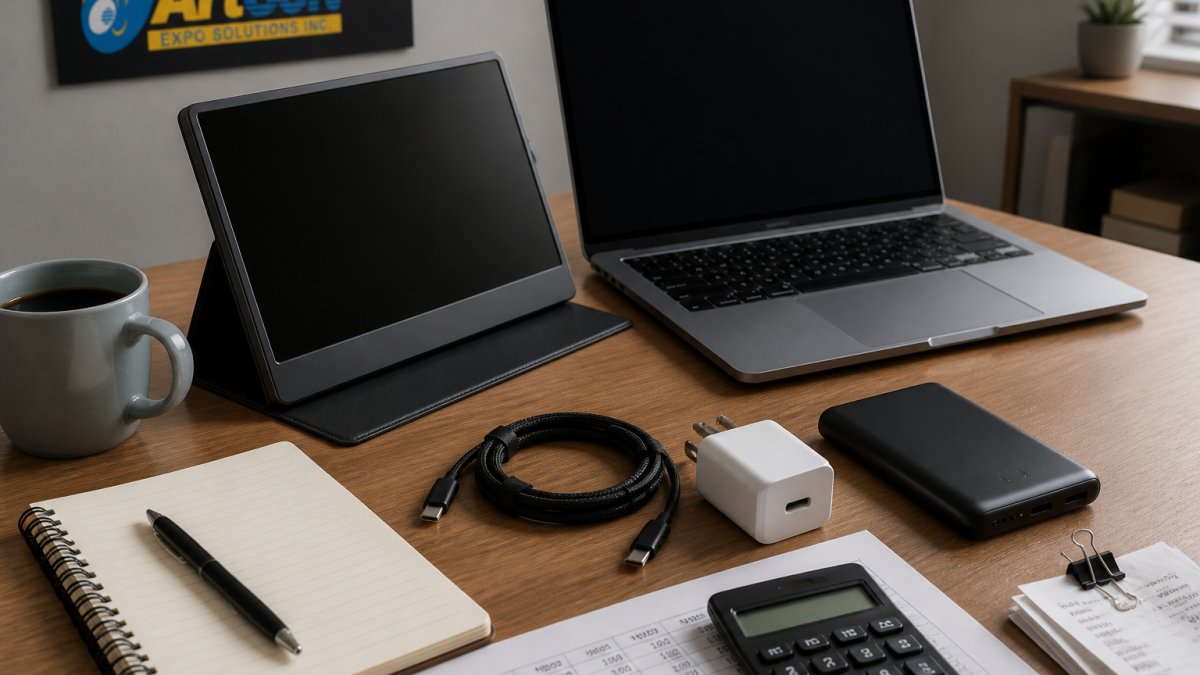
What the Real Total Cost Looks Like
The monitor is usually the biggest line item, but the accessories are where budgets quietly blow out. A cheap screen paired with a mismatched charger and a video cable that only carries data will cost you more in returns and replacements than buying the right parts once.
Where You Can Cut Costs Without Regret
- Skip the touchscreen unless you actually need it for presentations.
- Skip the built-in battery if you always work near an outlet.
- Buy one good cable instead of a drawer full of cheap ones.
- Reuse what you own, a phone charger that meets the monitor's power rating often works fine.
How to Pick the Best Budget Portable Monitor by Task
The best budget portable monitor is the one that matches your actual work, not the one with the biggest spec sheet. Spreadsheets, email, and documents need screen space and text clarity. Video calls need a decent camera position and reasonable brightness. Photo or design work needs color accuracy, which is where budget panels give ground first.
Screen Size, Resolution, and Brightness by Use Case
| Use Case | Screen Size | Resolution | Brightness Priority |
|---|---|---|---|
| Email, documents, spreadsheets | 14 to 15.6 inches | Full HD is enough | Low |
| Coding and multi-window work | 15.6 inches or larger | Full HD minimum | Low to medium |
| Photo and design review | 15.6 inches or larger | Higher resolution preferred | Medium |
| Presentations and client demos | 15.6 to 18.5 inches | Full HD | High |
| Travel and commuting | 10 to 14 inches | Full HD | Medium |
Screen size drives portability more than any other spec. A 15.6-inch display fits most backpacks but eats desk space. A 10-inch display disappears into a bag but leaves you squinting at spreadsheets. If you split your time between a home lab and a travel setup, pick the smaller screen and accept the trade-off.
Resolution matters most for text. If you read dense documents all day, prioritize a panel that renders sharp text over one with a wider color range. Brightness matters most if you work near windows or in bright lobbies. A dim panel is unusable outdoors regardless of how good its colors are.
Portable Monitor with USB-C: One-Cable Setup and Compatibility Checks
A portable monitor with USB-C can run from a single cable that carries both video and power, which is the cleanest possible setup. The catch is that not every USB-C port on every laptop supports video output. Some ports charge only. Some carry data only. You need to confirm yours before you buy.
Check these three things before purchasing:
- Does the port support DisplayPort Alt Mode? This is what lets USB-C carry video.
- Can the port deliver enough power to run the monitor? Some laptops output limited wattage.
- Does your laptop's graphics hardware support an external display? Most do, but check the spec sheet.
If your laptop has Thunderbolt, you're in good shape. Thunderbolt ports carry video reliably and usually supply enough power for a small display.
Step-by-Step Setup for Different Laptop Ports
If your laptop has a full-featured USB-C port:
- Connect the monitor with a USB-C cable rated for video.
- The screen should power on and appear automatically.
- If it doesn't, open display settings and detect the second screen.
- Set it as an extended display, not a mirror.
If your laptop has HDMI only:
- Connect the monitor with an HDMI cable.
- Plug the monitor into its own power source, since HDMI carries no power.
- Set the display mode in your operating system's display settings.
If your laptop has USB-A only:
- Use a USB-A to HDMI adapter for video.
- Power the monitor separately through its own port.
- Expect a two-cable setup, not one.
If your laptop has a mix of ports:
- Prefer USB-C for video and power if the port supports it.
- Use HDMI as a fallback for older machines.
- Keep one adapter in your bag so you're never stuck.
Most budget displays are plug and play, meaning the operating system recognizes them without a driver install. When that fails, it's almost always the cable or the port, not the monitor.
Portable Monitor Power Requirements and Power Bank Planning
Portable monitor power requirements are the most overlooked part of a budget build. A monitor that draws more power than your laptop's USB-C port can supply will flicker, dim, or shut off entirely. Before you buy, find the monitor's rated power draw and compare it to what your laptop outputs.
Two power paths exist:
- Bus-powered: the monitor runs entirely from the laptop's USB-C port. Cleanest, but only works if the laptop supplies enough wattage.
- Self-powered: the monitor plugs into its own charger or power bank. Works with any laptop, but adds a cable.
For a power bank, match the output to the monitor's requirement with headroom to spare. A bank that outputs exactly the monitor's rating will drain fast and may not sustain brightness. Plan for real-world battery life by testing before you travel, not the night before a conference.
Portable Monitor Stand and Accessories That Protect Your Investment
A portable monitor stand and accessories do two jobs: they hold the screen at a usable height, and they keep it from cracking in your bag. Most budget monitors ship with a fold-out cover that doubles as a stand. That cover is fine for occasional use and inadequate for daily travel.
What's worth buying:
- A rigid protective cover if the included one is soft.
- A compact stand if you need the screen higher than the cover allows.
- A short right-angle cable to reduce strain on the port.
- A padded sleeve if you carry the monitor loose in a backpack.
Ergonomics matter more than most buyers expect. A portable display sitting flat on a desk forces you to look down all day, which wrecks your neck. Raise it to roughly eye level, even if that means propping it on a stack of books.
Troubleshooting Common Connection and Power Problems
Most portable display problems trace back to four causes: the cable, the port, the power supply, or the display settings. Work through them in that order.
- No signal at all: try a different cable first, then a different port.
- Screen powers on but stays black: check that the cable carries video, not just power.
- Flickering or dimming: the monitor isn't getting enough power. Switch to its own charger.
- Wrong resolution or stretched image: adjust the display settings manually.
- Second screen not detected: restart with the monitor already connected.
- Works on one laptop, not another: the second laptop's port likely lacks video support.
A useful rule: if the monitor works on one machine and not another, the problem is the machine, not the display. If it fails on every machine, suspect the cable.
Low-Cost Alternatives to Buying a Portable Monitor
A portable display isn't always the right purchase. If your budget is genuinely tight, several alternatives deliver a second screen without the hardware cost.
- Use a tablet as a second screen. Many tablets can extend a laptop display over a cable or wirelessly.
- Repurpose an old monitor. A spare desktop monitor plus a compact stand costs nothing if you already own the screen.
- Use your phone as a small side display. Fine for chat windows and reference material, not for spreadsheets.
- Rely on virtual desktops. Free, and often enough if you mainly switch between a few apps.
- Borrow or rent for events. For one-off conferences, renting beats buying.
The trade-off is portability. A repurposed desktop monitor isn't going in a backpack, and a tablet setup usually needs its own cable and power. If you travel weekly, a dedicated portable display still wins. If you work from one desk, the alternatives are genuinely better value.
For teams that need branded signage and tabletop displays alongside their screen setup, the same logic applies: buy the hardware that fits the job. The Mini RB II is a compact tabletop retractable banner at $60.00, and the Phoenix Mini Table Top Banner Stand at $105.00 adjusts to variable heights for a more substantial tabletop presence.


Building a portable display setup on a small budget is less about finding the cheapest screen and more about getting the power and cabling right the first time.
Frequently Asked Questions
What is the best budget portable display for a small setup?
It depends on your task. For document work and email, a 14 to 15.6-inch display at 1080p is enough and keeps costs down. If you edit photos or read dense spreadsheets, step up to a higher resolution panel. Check that the monitor supports USB-C power delivery so one cable handles both video and power. Also confirm your laptop's port type before buying, since older HDMI-only laptops need an adapter.
Do portable monitors need an external power source?
Many draw enough power from a USB-C port to run without a wall outlet, but brightness and resolution affect that draw. A 15.6-inch 1080p panel typically runs fine on bus power, while brighter or higher-resolution screens may need a charger or power bank. If your laptop's USB-C port does not deliver enough wattage, connect the monitor to its own power source and use a separate cable for video.
Can I connect a portable monitor to my laptop with one cable?
Yes, if your laptop's USB-C port supports DisplayPort Alt Mode. One USB-C cable then carries video, data, and power. Laptops with only HDMI or USB-A need an adapter or a second cable, and some older USB-C ports carry data only, not video. Check your laptop's spec sheet for Alt Mode support before assuming a single-cable setup will work.
How do I keep a portable display setup affordable for travel?
Buy the monitor first and add accessories only as needed. A protective cover doubles as a stand on many models, which saves buying a separate one. A short USB-C cable and a compact 45W charger cover most trips. If you fly often, measure your backpack's laptop sleeve before ordering, since 15.6-inch displays fit most bags but 18.5-inch models often do not.